GUI Help
Home Page
The home page shown in Figure 6-155 indicates that the login is successful.
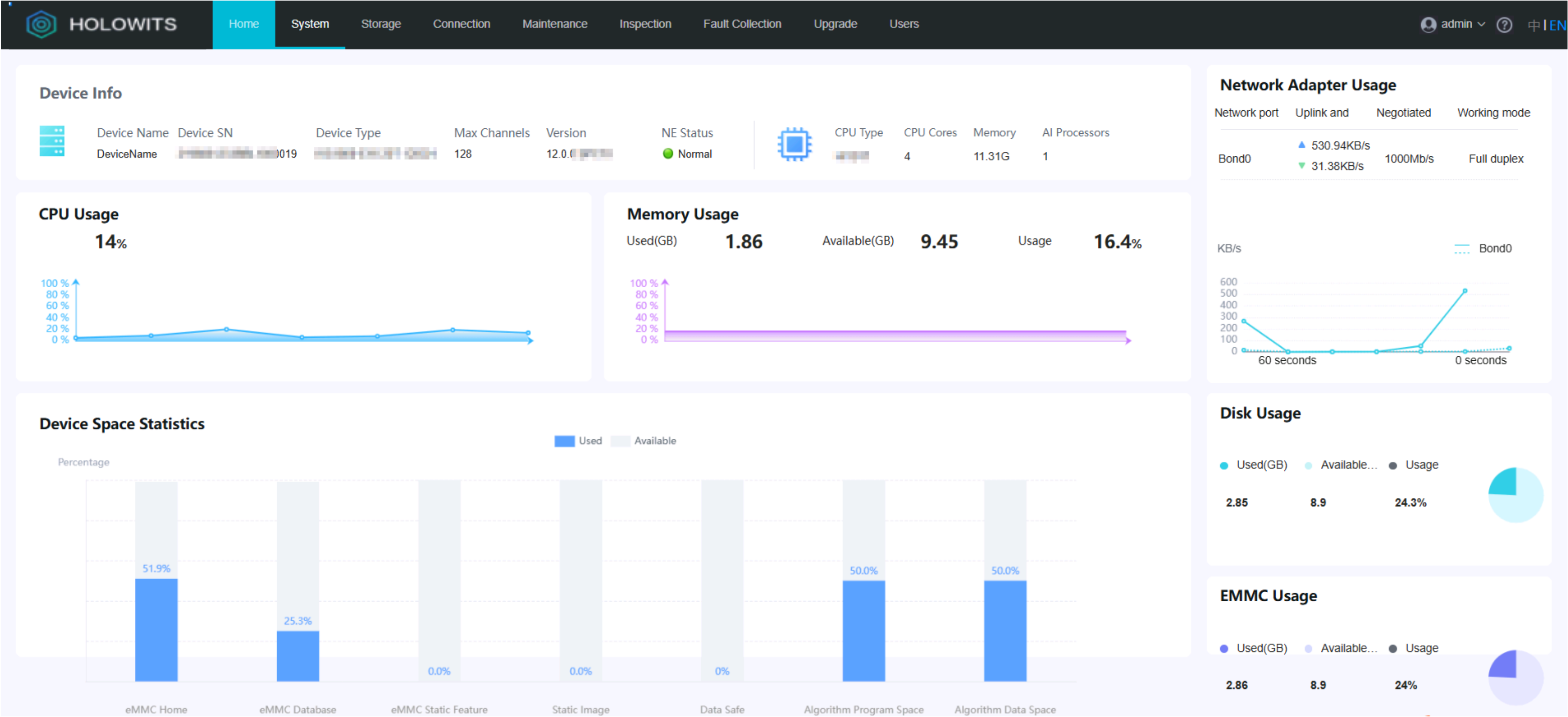
The home page shown in Figure 6-156 indicates that the login is successful.
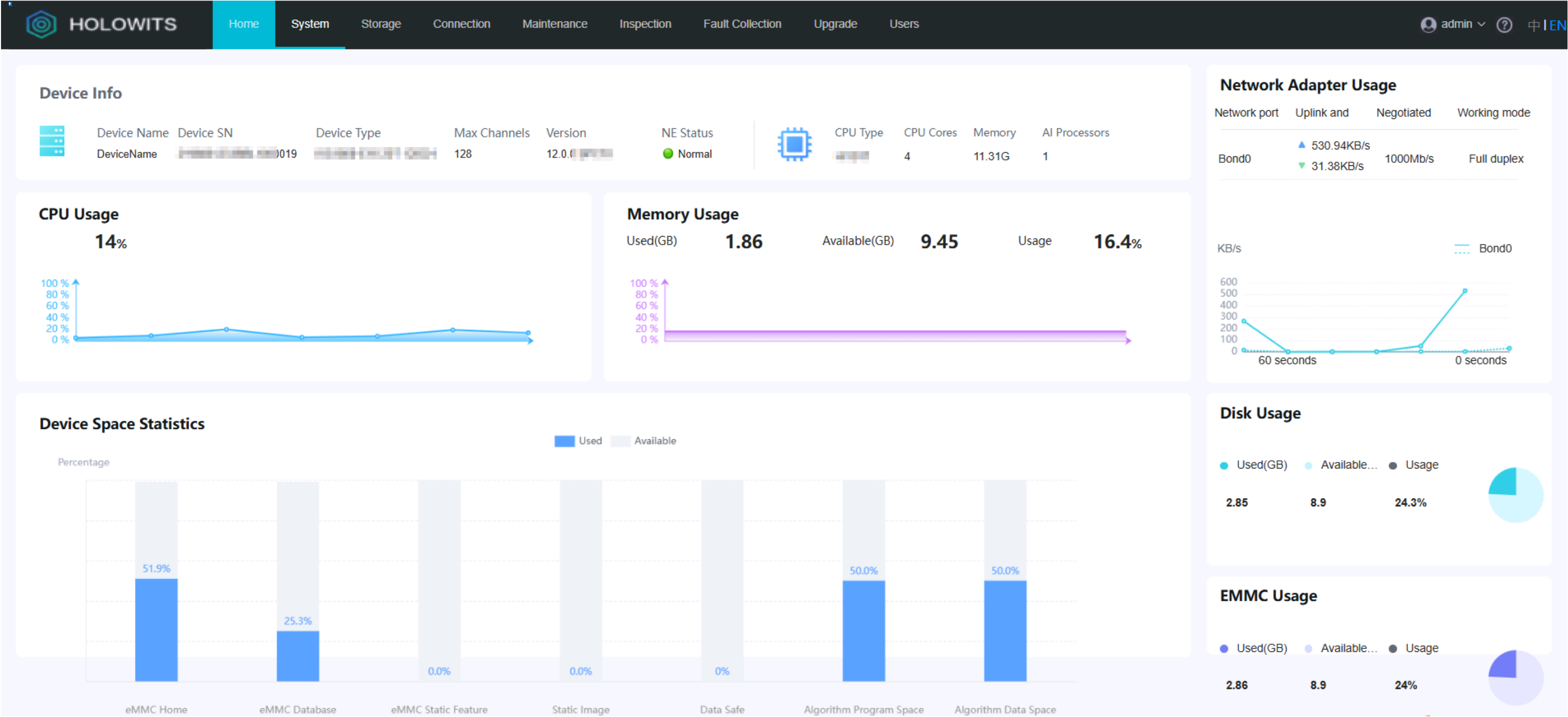
Parameters on the Home Page
Button |
Description |
|
|---|---|---|
|
Help |
Scan the QR code or click the link to obtain the online help. |
|
admin |
Login name of the current user. |
Log Out |
Button for logging out of the OMU portal. |
|
Restart |
Button for restarting the device. Only the admin user can restart the device. |
|
Password Security |
Button for changing the password and security question of the current login user. Only the admin user can perform the preceding operations. Table 6-45 describes the operations and related parameters and buttons. |
|

Operation |
Parameter/Button |
Description |
|---|---|---|
Change Password |
New Password |
New password of the user. You are advised to enter a complex password. |
Confirm Password |
||
Password Validity |
If you toggle off Password Validity, the message "Deselecting this option will cause security risks" is displayed. To ensure account security, you are advised to change the password periodically and keep the password secure. |
|
Password Validity Days |
Password validity period, in days. Set this parameter as required. |
|
Security question |
Change Security Questions |
NOTE:
|
System
Basic Settings
Parameter/Button |
Description |
|
|---|---|---|
SSH Service |
Indicates whether to enable the SSH service, which is used to manage remote connections. |
|
Device Name |
Basic information about the device. |
|
Description |
||
Auto Logout Duration |
Idle timeout interval, after which an idle user will be automatically logged out. |
|
Save |
Button for saving settings. |
|
Network Configuration
The parameters displayed on the page vary depending on device models.
Mode |
Parameter |
Description |
|---|---|---|
Single address |
Connection status |
Connection status of a network adapter, including |
Name |
Network adapter name. The default value is bond0. |
|
Service IP Address |
Device network information. Set these parameters based on the site requirements. |
|
Subnet Mask |
||
Gateway IP Address |
||
Enable IPv6 |
Indicates whether to enable IPv6. By default, this parameter is deselected. NOTE:
|
|
Enable DHCPv6 |
This parameter is available only when Enable IPv6 is selected. After DHCPv6 is enabled, the IPv6 address information cannot be modified. |
|
Enable DHCPv4 |
This parameter is available only when Enable IPv6 is deselected. After DHCPv4 is enabled, the IPv4 address information cannot be modified. |
|
IPv6 Service address |
IPv6 network information. Set these parameters based on the site requirements. NOTE:
|
|
IPv6 subnet prefix |
||
IPv6 gateway address. |
||
Double address |
Connection status |
Connection status of a network adapter, including |
Northbound Network Adapter |
The northbound network adapter corresponds to the GE 2 port on the rear panel. |
|
Northbound Service IP Address |
Network information of the northbound network adapter. Set these parameters based on the site requirements. |
|
Northbound Subnet Mask |
||
Northbound Gateway IP Address |
||
Southbound Network Adapter |
The southbound network adapter corresponds to the GE 1 port on the rear panel. |
|
Southbound Service IP Address |
Network information of the southbound network adapter. Set these parameters based on the site requirements. |
|
Southbound Subnet Mask |
||
Southbound Gateway IP Address |
||
Default Route |
The default route is the northbound network adapter. The rules for setting the default route vary depending on whether the IP addresses of the northbound device and northbound network adapter are in the same network segment.
|
|
Route Network Segment |
Network segment to which southbound devices belong. If there are multiple network segments, separate them with semicolons (;). If the iClient S100 and VMS platform are connected through the southbound network, you also need to add the network segments of the iClient S100 and VMS platform. |
|
Enable IPv6 |
Indicates whether to enable IPv6. By default, this parameter is deselected. NOTE:
|
|
Northbound service IPv6 address/Southbound IPv6 service address |
Network information of the northbound or southbound service. Set these parameters based on the site requirements. NOTE:
|
|
Northbound subnet prefix/Southbound Subnet Prefix |
||
IPv6 address of the northbound gateway/Southbound IPv6 gateway address |
||
IPv6 specified route network segment |
Information about the IPv6 network segment where the northbound device is located. If multiple network segments are involved, separate them with semicolons (;) and do not end with a semicolon (;). A maximum of 13 network segments can be configured, and a maximum of 200 characters are supported. |
 (connected),
  (disconnected), and
  (to be refreshed).
 (connected),
  (disconnected), and
  (to be refreshed).
Parameter |
Description |
|---|---|
Docker0 IP address |
Docker0 IP address. Set this parameter based on the site requirements. The value is in XXX.XXX.X.X/XX format, for example, 114.114.0.0/16. During setting, ensure that no Docker instance is running in the background. |
Parameter |
Description |
|---|---|
Primary DNS |
IP address of the primary DNS server. Set this parameter based on the site requirements. The default value is 8.8.8.8. |
Secondary DNS |
IP address of the secondary DNS server. Set this parameter based on the site requirements. If the primary DNS server cannot be connected, the device connects to the secondary DNS server for domain name resolution. The default value is 8.8.4.4. |
Button |
Description |
|---|---|
Save |
Button for saving settings. |
Reset |
Button for restoring data to the state last saved. |
Time Configuration
Parameter/Button |
Description |
|---|---|
Time Zone |
Current time zone of the device. |
Time Settings |
Device time. You can manually change the time. |
Device Time |
Current server time. |
Sync Time to Camera |
Indicates whether to synchronize the server time to the camera connected to the device. NOTE:
Cameras connected through HWSDK or ONVIF automatically time-synchronize with the server. For cameras connected through GB/T 28181 or RTSP, you need to separately configure time synchronization in the camera web system. |
Setting the DST |
Indicates whether to enable DST. If DST is used locally, toggle on this parameter. After the DST is configured, the time zone cannot be changed. Therefore, set the time zone before setting the DST. If you need to change the time zone after setting the DST, disable the DST first. |
Week |
DST mode. |
Date |
|
Start Time |
Start time of the DST. |
End Time |
End time of the DST. |
Offset Time |
Offset time of the DST. |
Save |
Button for saving settings. |
Cancel |
Button for restoring data to the state last saved. |
Parameter/Button |
Description |
|---|---|
NTP Server IP Address |
IP address of the NTP clock source server. The value can be an IPv4 or IPv6 address. After the IP address is set, the device synchronizes time with the clock source. |
If you click Verify, the system will check whether the communication with the clock source is normal. NOTE:
If Synchronize System Time With PUBLIC CLOUD is toggled on, NTP time synchronization previously configured for the HWT-IVS1800 (if any) will turn invalid. |
|
Time Zone |
Current time zone of the device. |
Time Settings |
Device time. You can manually change the time. |
If you click Synchronize, the time is manually synchronized with the NTP server. |
|
Device Time |
Current server time. |
Sync Time to Camera |
Indicates whether to synchronize the server time to the camera connected to the device. NOTE:
Cameras connected through HWSDK or ONVIF automatically time-synchronize with the server. For cameras connected through GB/T 28181 or RTSP, you need to separately configure time synchronization in the camera web system. |
Setting the DST |
Indicates whether to enable DST. If DST is used locally, toggle on this parameter. After the DST is configured, the time zone cannot be changed. Therefore, set the time zone before setting the DST. If you need to change the time zone after setting the DST, disable the DST first. |
Week |
DST mode. |
Date |
|
Start Time |
Start time of the DST. |
End Time |
End time of the DST. |
Offset Time |
Offset time of the DST. |
Save |
Button for saving all settings. After you click this button, the system automatically checks the current NTP server status of the device (specified by Local Status).
|
Cancel |
Button for restoring data to the state last saved. |
I/O Settings
I/O Alarm |
Parameter/Button |
Description |
|---|---|---|
Alarm Input |
ID |
Serial number. |
Name |
Name of an input channel. |
|
Type |
Alarm input type. Set this parameter based on the attributes of the port connected to the alarm device. If no alarm device is connected, set Type to Close.
For details, see How Do I Connect Cables and Configure Alarm Input and Output Ports?. |
|
Alarm Interval |
Interval between two alarms. For example, if the alarm interval is 10 seconds, the device receives an alarm only once within 10 seconds even if the alarm is reported multiple times. |
|
Alarm Output |
ID |
Serial number. |
Name |
Name of an alarm output channel. |
|
Type |
Alarm output type. Set this parameter based on the attributes of the port connected to the alarm device. If no alarm device is connected, set Type to Close.
For details, see How Do I Connect Cables and Configure Alarm Input and Output Ports?. |
|
Duration |
Alarm output duration, in seconds. The value ranges from 1 to 3600. |
|
Save |
Button for saving settings. |
|
Advanced Configuration

The system uses the SHA-256 encryption algorithm by default.
This section describes only some parameters. For other service parameters, see the page.
Button |
Description |
|---|---|
Export |
Click Export to export the common.csv file. All parameter settings under Advanced Configuration will be exported. |
Import |
|
OMU
Module |
Parameter Type |
Require Restart |
Parameter Name |
Description |
Default Value |
Value Limit |
Remarks |
|---|---|---|---|---|---|---|---|
OMU |
System attribute |
No |
MKUpdatePeriod |
Interval for updating the KMC root key, in days. |
90 |
An integer ranging from 30 to 365 |
The default value is 90, in days. |
OCG
Module |
Parameter Type |
Require Restart |
Parameter Name |
Description |
Default Value |
Value Range |
Remarks |
|---|---|---|---|---|---|---|---|
OCG |
MD5 switch |
No |
EnableMD5_N_Onvif |
Indicates whether to enable the MD5 algorithm when the ONVIF protocol is used to connect to a third-party platform. |
0 |
0 or 1 |
Using the MD5 algorithm will cause cyber security risks. You are advised to disable it. If the device to be connected supports only the MD5 algorithm, disabling this algorithm will cause connection failure. In this case, enable this algorithm and perform cyber security controls. Contact the device vendor to check whether the device to be connected supports only the MD5 algorithm. |
Type of images to be reported |
No |
CloudPicType |
Indicates whether to report the background image or listed target images. |
0 |
0 or 1 |
|
|
Background image report switch |
No |
OCG_PicCapacity |
Indicates whether to upload the background image for target recognition. By default, only target images are uploaded. |
0 |
0 or 1 |
This parameter takes effect only when CloudPicType is set to 1. Background images captured in target recognition scenarios occupy a large amount of storage space and consume high bandwidth when being transmitted to the cloud service over the Internet. Therefore, this parameter can be used to determine whether to report background images.
|
|
Target detection alarm report switch |
No |
CloudTargetDetect |
Indicates whether to report target detection alarms. |
0 |
0 or 1 |
The default value is 0.
|
|
Compressed RTSP URL switch |
No |
OnvifRtspUrlType |
Indicates whether to use compressed RTSP URLs. |
0 |
0 or 1 |
The default value is 0. This function is used to solve the problem of long URLs from external platforms being truncated. After this function is enabled, RTSP URLs obtained through ONVIF-based stream pulling are compressed by the MU. Determine whether to enable this function based on service requirements. |
IMGU
Module |
Parameter Type |
Require Restart |
Parameter Name |
Description |
Default Value |
Value Range |
Remarks |
|---|---|---|---|---|---|---|---|
IMGU |
IMGU media configuration |
Yes |
FlushDishDelayTime |
Timeout interval for writing data to disks, in seconds. |
10 |
An integer ranging from 2 to 120 |
The default value is 10. |
Yes |
EnableImageTamperVerity |
Indicates whether to enable the function of preventing snapshots from being tampered with. |
1 |
0 or 1 |
Disabling the tamper resistance function brings security risks. For security purposes, you are advised to enable this function. |
||
Yes |
UseCBC |
Indicates whether to enable CBC-based full encryption for the TLV data sent from cameras to the IMGU. |
0 |
0, 1, or left empty |
Disabling this function may cause security risks. For security purposes, you are advised to enable this function. |
||
Yes |
ContentType |
Content type of northbound push messages. |
0 |
0 or 1 |
|
||
No |
BehaviorCommonTIv |
Common TLV for behavior analysis. |
1 |
0 or 1 |
|
||
Yes |
HttpAcceptType |
HTTP Accept type of northbound push messages. |
0 |
An integer ranging from 0 to 2 |
|
||
No |
CameraFlowLimit |
Maximum amount of data traffic that the camera can send. |
1 |
0 or 1 |
|
||
Yes |
NorthPushExpect |
Indicates whether to leave the Expect parameter in the header empty during northbound push. |
1 |
0 or 1 |
|
||
Yes |
NorthPushUseSerial |
Serial number type used in the identifier during northbound push. |
1 |
An integer ranging from 0 to 2 |
|
||
Yes |
NorthPushTimeCurl |
Network connection timeout interval during northbound push, in seconds. |
10 |
An integer ranging from 1 to 20 |
This is an excluded setting. Do not perform related operations unless necessary. |
||
No |
NorthPushPauseTime |
Duration of pause due to consecutive sending errors during northbound push, in minutes. |
10 |
An integer ranging from 0 to 30 |
This is an excluded setting. Do not perform related operations unless necessary. |
||
No |
NorthPushRetryNum |
Maximum number of requests over the northbound push interface. |
1 |
An integer ranging from 1 to 8 |
This is an excluded setting. Do not perform related operations unless necessary. |
||
No |
NorthPushPicCacheUpper |
Upper limit of images in the northbound push interface cache. |
20 |
An integer ranging from 1 to 300 |
This is an excluded setting. Do not perform related operations unless necessary. |
||
Yes |
RestfulQueueRoof |
Upper limit of the cache queue of the northbound RESTful interface. |
100 |
An integer ranging from 0 to 300 |
This is an excluded setting. Do not perform related operations unless necessary. |
||
No |
FIRE_DETECT_EVENT_ALARM |
Criterion for triggering a fire alarm. |
1 |
An integer ranging from 0 to 2 |
|
DCG
Module |
Parameter Type |
Require Restart |
Parameter Name |
Description |
Default Value |
Value Range |
Remarks |
|---|---|---|---|---|---|---|---|
DCG |
System attribute |
Yes |
HW_INIT_FORBID_RSA |
Indicates whether to prevent the DCG from using the insecure RSA encryption suite to connect to cameras through HWSDK. |
1 |
0 or 1 |
The default value is 1. Disabling this function may cause security risks. For security purposes, you are advised to enable this function. |
HW_STREAM_KEEPALIVE |
Indicates whether to keep HWSDK media streams alive. |
0 |
0 or 1 |
|
|||
No |
ALARM_REPORT_SWITCH |
Indicates whether to report alarms. |
1 |
0 or 1 |
The default value is 1.
|
||
No |
DH_TEMPER_ALARM |
Indicates whether to report temperature measurement alarms with images. |
0 |
0, 1, or 2 |
|
||
whether forcibly replace the IP address and port number obtained |
No |
ONVIF_NAT |
Indicates whether to forcibly replace the IP address and port number obtained from the ONVIF capability set with those used for adding cameras. |
0 |
0 or 1 |
|
|
Authentication configuration |
Yes |
EnableMD5_SHA256_S_28181 |
GB/T 28181 authentication algorithm. |
0 |
An integer ranging from 0 to 2 |
The default value is 0. If the MD5 algorithm is disabled, connection may fail. If this algorithm is enabled, cyber security risks arise. |
|
No |
EnableMD5_S_Onvif |
Indicates whether to enable the MD5 algorithm when the ONVIF protocol is used to connect to cameras. |
0 |
0 or 1 |
The default value is 0. If the MD5 algorithm is disabled, connection may fail. If this algorithm is enabled, cyber security risks arise. |
||
Snapshot configuration |
No |
UPLOAD_PIC_BY_HTTPS |
Protocol used for cameras to upload snapshots to the DCG. |
1 |
An integer ranging from 0 to 2 |
The protocol for uploading snapshots depends on the HTTPS compatibility of cameras. If any end uses HTTP, HTTP is used in the entire communication. HTTP is an insecure protocol. Pay attention to data protection when using it. |
VA
Module |
Parameter Type |
Require Restart |
Parameter Name |
Description |
Default Value |
Value Range |
Remarks |
|---|---|---|---|---|---|---|---|
VA |
System attribute |
No |
AutoUninitAlgFlag |
Indicates whether to automatically uninstall idle algorithms. |
1 |
0 or 1 |
If this parameter is set to 1, the VA automatically uninstalls the algorithm that has no task so that another task using another algorithm can be raised. Note: If AutoStopIdleStaytask is set to 0, the algorithm will not switch to idle status. |
No |
AutoStopIdleStaytask |
Indicates whether to automatically stop idle resident tasks. |
1 |
0 or 1 |
If this parameter is set to 1, the VA automatically stops the resident tasks whose idle period has exceeded the value of StaytaskIdleTimeout. |
||
No |
StaytaskIdleTimeout |
Idle timeout interval of a resident task. |
60 |
An integer ranging from 1 to 65535 |
The unit is second. The resident task will be automatically stopped after it is idle for a specified period. This parameter is valid only when AutoStopIdleStaytask is set to 1. |
SMU
Module |
Parameter Type |
Require Restart |
Parameter Name |
Description |
Default Value |
Value Range |
Remarks |
|---|---|---|---|---|---|---|---|
SMU |
PTZ control operator information overlay on the image |
No |
OsdDisplayUserInfoEnable |
Indicates whether to superimpose PTZ control operator information on the image. |
0 |
0 or 1 |
The default value is 0. |
No |
OsdDisplayUserInfoTime |
Maximum duration for superimposing PTZ control operator information on the image, in seconds. |
5 |
An integer ranging from 5 to 600 |
The default value is 5. |
||
No |
OsdDisplayUserInfoTextX |
X coordinate of the PTZ control operator information, with the upper left corner as the coordinate origin. |
0.5 |
A floating point number accurate to two decimal places in [0,1] |
The value ranges from 0 to 1, indicating 0% to 100%. The value is accurate to two decimal places. |
||
No |
OsdDisplayUserInfoTextY |
Y coordinate of the PTZ control operator information, with the upper left corner as the coordinate origin. |
0.5 |
A floating point number accurate to two decimal places in [0,1] |
The value ranges from 0 to 1, indicating 0% to 100%. The value is accurate to two decimal places. |
||
System attribute |
No |
BindIp |
Indicates whether to bind user authentication messages to the IP address. |
1 |
0 or 1 |
If the default value 1 is used, session hijacking may occur. |
|
No |
EnableLiveSucOperLog |
Indicates whether to record logs about live video viewing success. |
1 |
0 or 1 |
The default value is 1. |
||
No |
EnableLiveFailOperLog |
Indicates whether to record logs about live video viewing failure. |
1 |
0 or 1 |
The default value is 1. |
||
No |
passwordExpireAlarmType |
Mode in which the password expiration alarm is reported. |
0 |
0, 1, or 2 |
This alarm is visible only to the system administrator. |
||
No |
passwordExpireDetectTime |
Password expiration detection time. |
08:00 |
Format: HH:MM |
The default value is 08:00. |
||
NetCard bound in udp multicast |
Yes |
MulticastWorkNetcard |
Network adapter (that sends and receives messages in UDP multicast mode) to be bound. |
eth1 |
eth0 or eth1 |
Select eth0 for the southbound network adapter and eth1 for the northbound network adapter. The default value is eth1. If the value of this parameter is changed to another network adapter, the SMU will restart and the network adapter will be listened on. |
SCU
Module |
Parameter Type |
Require Restart |
Parameter Name |
Description |
Default Value |
Value Range |
Remarks |
|---|---|---|---|---|---|---|---|
SCU |
System attribute |
No |
PTZControlTimeout |
PTZ lock duration. |
300 |
0 (permanent lock) or an integer ranging from 5 to 600 |
The default value is 300, in seconds. The default value is recommended. |
No |
PURegStrongPwd |
Indicates whether to verify the complexity of the password for cameras to proactively register with the platform. |
1 |
0 or 1 |
If this parameter is set to 0, security risks may arise. For security purposes, you are advised to enable this function. |
||
No |
RecAlarmFilter |
Indicates whether to filter out alarms (that are different from the hit alarms triggered by alert tasks) for target recognition. |
1 |
0 or 1 |
|
||
Yes |
NTPIPC |
Time calibration method. |
1 |
An integer ranging from 0 to 2 |
This parameter is used to set the time calibration mode. The default value is 1.
|
MU
Module |
Parameter Type |
Require Restart |
Parameter Name |
Description |
Default Value |
Value Range |
Remarks |
|---|---|---|---|---|---|---|---|
MU |
MU recording deletion configuration |
No |
deleteRecordAbility |
Indicates whether to support recording deletion. |
0 |
0 or 1 |
Indicates whether to support recording deletion. 0: yes 1: no |
MU |
MU media configuration |
No |
IsPrestream |
Indicates whether to enable pre-pulling. |
1 |
0 or 1 |
The default value is 1. NOTE:
For 128-channel devices, this function is disabled by default. To use the LDU function, you are advised to enable this function. |
SupportABSTimestamp |
Indicates whether to carry an absolute timestamp during recording playback. |
0 |
0 or 1 |
The default value is 0. |
|||
StandardRTSPNatSupport |
Indicates whether to enable NAT support for standard RTSP. |
1 |
0 or 1 |
The default value is 1. |
|||
IsCloudRtpTimestamp |
Indicates whether the cloud service uses the camera RTP timestamp. |
1 |
0 or 1 |
The default value is 1. |
|||
IsCheckNorthReceiverReport |
Indicates whether to check the northbound receiver report. |
1 |
0 or 1 |
|
|||
IsUrlVaildSingleTime |
Indicates whether the RESTful URL is valid for one time. |
1 |
0 or 1 |
|
|||
Yes |
TcpRecvMediaPort |
Start port for receiving TCP streams. |
10000 |
The value is an integer ranging from 10000 to 30000. [n,n+101] cannot contain port 18531. The default port is port 10000. |
The port is used by the MU to receive media streams from cameras. The system uses this configuration value and the 101 ports that follow. If you change the port number, ensure that the new port number is different from those described in the product communication matrix. |
||
TcpSendMediaPort |
Start port for sending TCP streams. |
11400 |
The value is an integer ranging from 10000 to 30000. [n,n+65] cannot contain port 18531. The default port is port 11400. |
The port is used by the MU to send media streams to the client. The system uses this configuration value and the 65 ports that follow. If you change the port number, ensure that the new port number is different from those described in the product communication matrix. |
|||
UdpRecvMediaPort |
Start port for receiving UDP streams. |
12800 |
The value is an integer ranging from 10000 to 30000. [n,n+799] cannot contain port 18531. The default port is port 12800. |
The port is used by the MU to receive media streams from cameras. The system uses this configuration value and the 799 ports that follow. If you change the port number, ensure that the new port number is different from those described in the product communication matrix. |
|||
UdpSendMediaPort |
Start port for sending UDP streams. |
21200 |
The value is an integer ranging from 10000 to 30000. [n,n+519] cannot contain port 18531. The default port is port 21200. |
The port is used by the MU to send media streams to the client. The system uses this configuration value and the 519 ports that follow. If you change the port number, ensure that the new port number is different from those described in the product communication matrix. |
|||
SinglePESHeader |
Indicates whether to merge PES frames during video decoding through GB/T 28181. |
0 |
0 or 1 |
The default value is 0. If this function is disabled, some video platforms may fail to decode video through GB/T 28181. |
|||
MaxEncapRtpSize |
Maximum RTP packet size in the case of GB/T 28181-compliant connection. |
1414 |
An integer ranging from 1000 to 1414, in bits |
The default value is 1414. |
|||
MU |
MU alarm configuration |
No |
omuPingInterval |
Interval for performing the ping operation upon stream receiving timeout. |
1 |
An integer ranging from 0 to 65535, in seconds |
The default value is 1. |
No |
omuPingPackageSize |
Maximum ping packet size upon stream receiving timeout. |
1 |
An integer ranging from 0 to 65535, in seconds |
The default value is 1. |
||
No |
omuPingTime |
Ping operation upon stream receiving timeout. |
5 |
An integer ranging from 0 to 65535, in seconds |
The default value is 5. |
||
MU |
MU recording configuration |
Yes |
MaxRecordLockThreshold |
Maximum percentage of the locked recording space to the total recording space. |
5 |
An integer ranging from 0 to 90 |
The default value is 5, in percentage. |
Yes |
MaxUploadRetryCountsLimit |
Maximum number of recording upload retries. |
3 |
An integer ranging from 3 to 120 |
The default value is 3. You can customize this parameter. For example, set it to 4. In this case, if the system fails to upload a buffered recording from a camera that goes online again after four consecutive upload retries, the system skips the current recording and proceeds with upload of the next buffered recording. |
||
Yes |
MaxUploadRetryDaysLimit |
Maximum duration during which buffered recordings to be uploaded is generated. |
1 |
An integer ranging from 1 to 180 |
The default value is 1. You can customize this parameter. For example, if this parameter is set to 5, the system sends a request to upload buffered recordings of the past five days from a camera that goes online again. |
||
MU playback configuration |
Yes |
MaxReplayWays |
Maximum number of recording playback channels. |
- |
An integer ranging from 1 to 32 |
The default value is 16 for 16-channel devices, or 32 for 64-channel devices and 128-channel devices. |
|
No |
BookmarkRecordLen |
Duration of a recording to be searched before and after bookmarked frames, in seconds. |
30 |
An integer ranging from 30 to 1800 |
The default value is 30. |
||
Authentication configuration |
No |
EnableMD5_S_RTSP |
Indicates whether to enable MD5 for RTSP. |
0 |
0 or 1 |
The default value is 0. NOTE:
Using the MD5 algorithm will cause cyber security risks. You are advised to disable it. If the device to be connected supports only the MD5 algorithm, disabling this algorithm will cause connection failure. In this case, enable this algorithm and perform cyber security controls. Contact the device vendor to check whether the device to be connected supports only the MD5 algorithm. |
|
EnableBasic_RTSP |
Indicates whether to enable Basic authentication for requesting media streams from cameras through RTSP. |
0 |
0 or 1 |
|
PCG
Module |
Parameter Type |
Require Restart |
Parameter Name |
Description |
Default Value |
Value Range |
Remarks |
|---|---|---|---|---|---|---|---|
PCG |
System attribute |
No |
PCGStrongPassword |
Indicates whether to verify the complexity of the password for connecting to the platform through GB/T 28181. |
1 |
0 or 1 |
The default value is 1. If this parameter is set to 0, security risks may arise. For security purposes, you are advised to enable this function. |
PCGRecordTimeZone |
Time zone for recording query. |
1 |
An integer ranging from 0 to 2 |
The default value 1 is used when the platform queries recordings from the device. |
|||
PCGSipRport |
Indicates whether the signaling VIA carries rport. |
1 |
0 or 1 |
The default value is 1. |
|||
PCGRecordSearchDay |
Days in which video to be search is generated. |
30 |
An integer ranging from 1 to 30 |
The default value is 30. |
|||
PCGStreamId_N_28281 |
Type of streams to be pulled for GB/T 28181-based northbound connection. |
0 |
An integer ranging from 0 to 3 |
If the default value 0 is used, no stream type is specified for GB/T 28181-based northbound connection.
|
|||
PCGCleanOldestRtspSession |
Indicates whether to automatically clear RTSP links. |
0 |
0 or 1 |
The default value is 0. You are advised not to enable this function in normal cases.
|
|||
PCGAutoReplaceHeader |
Indicates whether to automatically replace SIP header fields. |
0001 |
Indicates whether to automatically replace SIP header fields. |
Each bit indicates a header field (first bit: From; second bit: To; third bit: Via; fourth bit: Contact. The value 0 indicates that the header field is not replaced, and the value 1 indicates that the header field is replaced. |
|||
PCGRtspSessionTimeout |
RTSP link timeout interval, in hours. |
5 |
An integer ranging from 1 to 10 |
The default value is 5. This parameter is valid only when PCGCleanOldestRtspSession is set to 1. |
|||
Yes |
PCGMediaRtspClearRepeat |
Indicates whether to clear media streams triggered by the same subject. |
0 |
0 or 1 |
The default value 0 is recommended.
After this function is enabled, only stream pulling from a single northbound client is supported in the GB/T 28181-compliant connection scenario. |
||
Authentication configuration |
No |
EnableMD5_N_28181 |
Indicates whether to enable the MD5 algorithm when the GB/T 28181 protocol is used to connect to a third-party platform. |
0 |
0 or 1 |
The default value is 0.
Using the MD5 algorithm will cause cyber security risks. You are advised to disable it. If the device to be connected supports only the MD5 algorithm, disabling this algorithm will cause connection failure. In this case, enable this algorithm and perform cyber security controls. Contact the device vendor to check whether the device to be connected supports only the MD5 algorithm. |
|
PCG |
System attribute |
No |
PCGAlarmExtend |
Indicates whether to support extended alarm types. |
0 |
0 or 1 |
The default value is 0. You are advised not to enable this function in normal cases.
|
MCS
Module |
Parameter Type |
Require Restart |
Parameter Name |
Description |
Default Value |
Value Range |
Remarks |
|---|---|---|---|---|---|---|---|
MCS |
System attribute |
No |
DelStatistic |
Indicates whether to delete the statistics table to release the database storage space. |
0 |
0 or 1 |
Indicates whether to delete the statistics table to release the database storage space. |
System attribute |
No |
BackAccessFaceDeleteMSG |
Time when the target ID is deleted in frontend-based intelligent access control mode. |
10 |
An integer ranging from 1 to 30 |
Time when the target ID is deleted in frontend-based intelligent access control mode. |
|
System attribute |
No |
BackAccessFaceTimeoutMSG |
Delay time of alarms generated upon no hit in frontend-based intelligent access control mode, in seconds. |
1 |
An integer ranging from 1 to 30 |
Delay time of alarms generated upon no hit in frontend-based intelligent access control mode, in seconds. |
|
System attribute |
No |
AlarmFaceMSG |
Indicates whether to enable target alarms. |
0 |
0 or 1 |
The default value is 0. |
|
System attribute |
Yes |
OpenStatistic |
Indicates whether to enable the data statistics function. |
0 |
0 or 1 |
The default value is 0. For an HWT-IVS1800-D that has been upgraded to 11.1.0 or a later version, the data statistics function is enabled by default. After this function is enabled, you can view object classification statistics. |
PUBLIC
Module |
Parameter Type |
Require Restart |
Parameter Name |
Description |
Default Value |
Value Range |
Remarks |
|---|---|---|---|---|---|---|---|
PUBLIC |
NAT |
No |
NNatIP |
Post-NAT northbound IP address, which is used for client connection. |
127.0.0.1 |
IP address |
The default value is 127.0.0.1, indicating that the IP address is not set. |
SNatIP |
Post-NAT southbound IP address, which is used to receive snapshots taken by cameras. |
127.0.0.1 |
IP address |
The default value is 127.0.0.1, indicating that the IP address is not set. |
|||
OMUNHttpNatPort |
Post-NAT northbound HTTP port number of the OMU. |
0 |
An integer ranging from 0 to 65535 |
The value 0 indicates that the port number is not set. |
|||
OMUNHttpsNatPort |
Post-NAT northbound HTTPS port number of the OMU. |
0 |
An integer ranging from 0 to 65535 |
The value 0 indicates that the port number is not set. |
|||
OMUSHttpNatPort |
Post-NAT southbound HTTP port number of the OMU. |
0 |
An integer ranging from 0 to 65535 |
The value 0 indicates that the port number is not set. |
|||
OMUSHttpsNatPort |
Post-NAT southbound HTTPS port number of the OMU. |
0 |
An integer ranging from 0 to 65535 |
The value 0 indicates that the port number is not set. |
|||
IMGUNNatPort |
Post-NAT northbound port number of the IMGU. |
0 |
An integer ranging from 0 to 65535 |
The value 0 indicates that the port number is not set. |
|||
IMGUiClientSNatPort |
Post-NAT port number for client access in the IMGU southbound NAT scenario. |
0 |
An integer ranging from 0 to 65535 |
The value 0 indicates that the port number is not set. |
|||
IMGUSNatPort |
Post-NAT port number for camera access in the IMGU southbound NAT scenario. |
0 |
An integer ranging from 0 to 65535 |
The value 0 indicates that the port number is not set. |
|||
SDKSNatPort |
Post-NAT southbound port number of the SDKservice, which is returned by the SMU to the client on the computer. |
0 |
An integer ranging from 0 to 65535 |
The value 0 indicates that the port number is not set. |
|||
SDKNatPort |
Post-NAT northbound port number of the SDKservice, which is returned by the SMU to the client on the computer. |
0 |
An integer ranging from 0 to 65535 |
The value 0 indicates that the port number is not set. |
|||
NatRtspServerPort |
Post-NAT northbound port number of the MU. |
0 |
An integer ranging from 0 to 65535 |
The value 0 indicates that the port number is not set. |
|||
NatRtspTlsServerPort |
Post-NAT northbound TLS port number of the MU. |
0 |
An integer ranging from 0 to 65535 |
The value 0 indicates that the port number is not set. |
|||
NatSRtspPort |
Post-NAT RTSP port number of the MU in the southbound scenario. |
0 |
An integer ranging from 0 to 65535 |
The value 0 indicates that the port number is not set. |
|||
NatSRtspTlsPort |
Post-NAT RTSP TLS port number of the MU in the southbound scenario. |
0 |
An integer ranging from 0 to 65535 |
The value 0 indicates that the port number is not set. |
|||
PCGNNatPort |
Post-NAT northbound port number of the PCG. |
0 |
An integer ranging from 0 to 65535 |
The value 0 indicates that the port number is not set. |
|||
HttpsNatPort |
Post-NAT HTTPS port for snapshot taking |
0 |
An integer ranging from 0 to 65535 |
The value 0 indicates that the port number is not set. |
|||
PUBLIC |
NAT |
No |
ThirdAPPNNatPort |
Post-NAT northbound port number of the third-party algorithm. |
0 |
An integer ranging from 0 to 65535 |
The value 0 indicates that the port number is not set. |
ThirdAPPSNatPort |
Post-NAT southbound port number of the third-party algorithm. |
0 |
An integer ranging from 0 to 65535 |
The value 0 indicates that the port number is not set. |
|||
PUBLIC |
NAT subnet list |
No |
OCG_NAT_LIST |
NAT subnet list. Use semicolons (;) to separate IP addresses from subnets, for example, 192.168.1.0/24;192.168.2.0. The value contains a maximum of 200 characters. |
- |
IP addresses and network segments |
This parameter needs to be set only in the ONVIF scenario. The OCG is used to determine the NAT scenario of the VMS or third-party devices. |
DCG_NAT_LIST |
NAT subnet list. Use semicolons (;) to separate multiple subnets, for example, 192.168.1.0/24;192.168.2.0/24. The value contains a maximum of 200 characters. |
- |
Network segments |
The NAT subnet list is used to determine whether NAT is required for cameras. |
|||
PUBLIC |
System attribute |
Yes |
PCGListeningAdapter |
Network adapter for listening on the GB/T 28181 service. |
eth1 |
eth0 or eth1 |
Select eth0 for the southbound network adapter and eth1 for the northbound network adapter. The default value is eth1. This parameter is available only in the dual-address scenario. |
Yes |
OCGListeningAdapter |
Network adapter for listening on the ONVIF service. |
eth1 |
eth0 or eth1 |
Select eth0 for the southbound network adapter and eth1 for the northbound network adapter. The default value is eth1. This parameter is available only in the dual-address scenario. |
||
PUBLIC |
System attribute |
No |
AutoSnapshot |
Indicates whether to automatically trigger snapshot taking when a service alarm without images is reported. |
2 |
0, 1, or 2 |
The default value is 2. NOTE:
This function applies only to cameras connected through the HWSDK protocol. |
PUBLIC |
System attribute |
No |
DB31 |
Indicates whether to enable Shanghai local standard-related event push. |
0 |
0 or 1 |
The default value is 0. After this function is enabled, only the admin user can receive the information pushed through the Shanghai local standard. |
PUBLIC |
System attribute |
No |
Bond0_DhcpMode |
DHCP mode. |
0 |
An integer ranging from 0 to 2 |
By default, DHCP is disabled. |
PUBLIC |
System attribute |
No |
AlarmPushConfig |
Alarm event push mode. |
0 |
An integer ranging from 0 to 2 |
|
PUBLIC |
System attribute |
Yes |
OCGListeningAdapter |
Network adapter for listening on the ONVIF service. |
eth1 |
eth0 or eth1 |
Select eth0 for the southbound network adapter and eth1 for the northbound network adapter. The default value is eth1. This parameter is available in the dual-address scenario. |
PUBLIC |
System attribute |
Yes |
PCGListeningAdapter |
Network adapter for listening on the GB/T 28181 service. |
eth1 |
eth0 or eth1 |
Select eth0 for the southbound network adapter and eth1 for the northbound network adapter. The default value is eth1. This parameter is available in the dual-address scenario. |
PUBLIC |
System attribute |
No |
HttpsSnapPort |
HTTPS Port for snapshot taking. |
0 |
0 or 1 |
The default value is 0, indicating that port 8482 is the default HTTPS port for snapshot taking. |
PUBLIC |
System attribute |
No |
RestfulSubLimit |
Indicates whether to restrict intelligent data update subscription. |
1 |
0 or 1 |
The default value is 0, indicating that the subscription is not restricted. |
PUBLIC |
System attribute |
No |
Language |
System language. |
en_US or ja_JP |
zh_CN, en_US, or ja_JP |
Modifying this parameter will expose the system to risks. |
PUBLIC |
System attribute |
No |
LicenseExpireWarningTime |
Number of days prior to the third-party algorithm license expiration that a user will be warned that the license is about to expire. |
60 |
An integer ranging from 0 to 180, in days |
The default value is 60, indicating that an expiration warning is generated every day within 60 days prior to the third-party algorithm license expiration. |
PUBLIC |
System attribute |
No |
ElectricRoomName |
Name of the power distribution room. |
- |
- |
Name of the power distribution room. |
ElectricRoomNum |
Number of the power distribution room. |
- |
- |
Number of the power distribution room. |
|||
EnableElectric |
Indicates whether to enable plug-and-play. |
0 |
0 or 1 |
The default value is 0.
NOTE:
This function is mutually exclusive with the function of searching for and adding cameras on the iClient S100. To use the iClient S100 to search for and add cameras, you need to disable the plug-and-play function. |
|||
ElectricIP |
URL of the security platform to be connected. |
- |
- |
URL of the security platform to be connected. |
|||
ElectricAccount |
User name for connecting to the security platform. |
- |
- |
User name for connecting to the security platform. |
|||
ElectricVideoStation |
Primary video site. |
- |
- |
Primary video site. |
|||
PUBLIC |
System attribute |
No |
SiraSwitch |
Indicates whether to enable SIRA authentication. |
0 |
0 or 1 |
The default value is 0. After this function is enabled, you can set SIRA authentication parameters under Maintenance Management > SIRA Authentication. |
PUBLIC |
System attribute |
No |
FeatureSynergy |
Feature-based collaboration. |
0 |
0 or 1 |
Indicates whether to enable feature-based collaboration.
|
PUBLIC |
Device name |
No |
DeviceName |
Device name. |
Device name. |
- |
Device name. |
PUBLIC |
- |
No |
DeviceDescribe |
- |
00101 |
- |
Device description. |
PUBLIC |
IP address type |
No |
ElectricIPType |
Type of the IP address for connecting to the security platform. |
0 |
0 or 1 |
Type of the IP address for connecting to the security platform. |
PUBLIC |
System attribute |
No |
ThirdTargetPlugcinCpu |
CPU upper limit for running a third-party target recognition algorithm container. |
0 |
A value ranging from 0.1 to 2.5, with one decimal place supported |
The default value is 0, indicating 2.0 cores. |
PUBLIC |
System attribute |
No |
ThirdTargetPlugcinMem |
Memory upper limit for running a third-party target recognition algorithm container. |
6144 |
An integer ranging from 1 to 7168, in MB |
The default value is 0, indicating 6144 MB. |
PUBLIC |
System attribute |
No |
EnableElectricCertificate |
Indicates whether to enable two-way certificate authentication for the Shenzhen electric power platform. |
1 |
0 or 1 |
The default value is 1. |
PUBLIC |
System attribute |
No |
ThirdContainerCpu |
CPU upper limit for running a third-party algorithm container. |
0 |
A value ranging from 0.1 to 2.0, with one decimal place reserved |
This parameter takes effect only in third-party algorithm mode. The default value is 0: 0.7U 3G for the IVS1800-E08 and IVS1800-E16 in intelligent mode, and 0.4U 3G for the IVS1800-E16 in access mode. |
PUBLIC |
System attribute |
No |
ThirdContainerMem |
Memory upper limit for running a third-party algorithm container. |
0 |
An integer ranging from 1 to 6144, in MB |
This parameter takes effect only in third-party algorithm mode. The default value is 0: 0.7U 3G for the IVS1800-E08 and IVS1800-E16 in intelligent mode, and 0.4U 3G for the IVS1800-E16 in access mode. |
PUBLIC |
System attribute |
No |
ThirdHostIp |
Host IP address obtained from a third-party container. |
0 |
An integer ranging from 0 to 2, or an IP address |
Host IP address obtained from a third-party algorithm container. 0 (default): dual IP addresses, with eth1 recommended; 1: eth0; 2: eth1; Others: user-defined IP address |
PUBLIC |
System attribute |
No |
ALARM_TARGET_DETECTION |
Indicates whether the SCU or DCG reports target detection alarms. |
0 |
0 or 1 |
0 (default): The SCU reports alarms, which contain partial images; 1: The DCG reports alarms, which contain full images only when the automatic capture function is enabled. |
PUBLIC |
System attribute |
No |
ElectricAlarmIP |
URL of the alarm platform to be connected. |
- |
- |
URL of the alarm platform to be connected. |
SIP
Module |
Type |
Require Restart |
Parameter |
Description |
Default Value |
Value Range |
Remarks |
|---|---|---|---|---|---|---|---|
SIP |
System attribute |
Yes |
GB28181Iptype |
IP address type for GB/T 28181-compliant connection. |
0 |
0 or 1 |
Default value: 0
NOTE:
If this parameter is set to 0, you need to set GB/T 28181 Service IP of Upper-Level Platform to an IPv4 address under Connection > GB/T28181. If this parameter is set to 1, you need to set GB/T 28181 Service IP of Upper-Level Platform to an IPv6 address under Connection > GB/T28181. |
Network Security Configuration
Parameter |
Description |
Remarks |
|---|---|---|
Advanced |
Allows users to manually enable algorithms or protocols as required. |
|
Secure |
Disables insecure algorithms or protocols such as the MD5 algorithm and Basic authentication, which may affect the compatibility with other platforms or cameras. |
|
Compatible |
Enables insecure algorithms or protocols such as the MD5 algorithm and Basic authentication, which may pose cyber security risks. |
Storage
Disks
Parameter/Button |
Description |
|---|---|
System Area |
Disk partition type. |
Data Area |
|
Name |
Name of a RAID group, for example, SmartGroup0, which is generated by the system when you create the RAID group. |
RAID Level |
RAID level of a RAID group. |
Status |
Status of a RAID group. The options are as follows:
|
RAID Group Capacity (GB) |
Total capacity of a RAID group. |
Member Disks |
Number of disks in a RAID group. |
|
Button for viewing member disks in a RAID group and information about the RAID 5 group (available only when RAID Level is set to RAID5).
|

Parameter/Button |
Description |
||
|---|---|---|---|
Disk View |
Logical Type |
Type of a disk. Disk types are marked in different colors. |
|
Physical Status |
Physical status of a disk. The options are as follows:
|
||
Compatibility Status |
Compatibility status of a disk.
You can perform operations on disks based on the compatibility status. For details, see Disk Faults. |
||
Front view |
Front view of each disk. When you place the mouse pointer over the front view, the disk attributes are displayed. |
||
Disk Details |
Slot |
Slot number of a disk. |
|
Physical Type |
Physical type of a disk. |
||
Capacity (GB) |
Capacity of a disk. |
||
Logical Status |
Logical status of a disk. The options are as follows:
|
||
Logical Type |
Logical type of a disk. The options are as follows:
|
||
Physical Status |
Physical status of a disk. The options are as follows:
|
||
Vendor |
Vendor of a disk. |
||
Model |
Model of a disk. |
||
Firmware Version |
Firmware version of a disk. |
||
Serial No. |
Serial number of a disk, which is generated before delivery. |
||
Operating Duration (h) |
Accumulative operating duration of a disk. |
||
Temperature (°C) |
Current temperature of a disk. |
||
SMART |
Disk |
Disk to be checked. |
|
Test Mode |
Conveyance |
Check the mechanical parts of a disk. This mode takes a short period of time. |
|
Short |
Check the main components of a disk drive, such as the read/write head, electrical performance, and internal memory. This mode takes a long period of time. |
||
Expanded |
Check the main components of a disk drive, perform a surface scan to find the area where the problem may exist, and forcibly reallocate the bad sector. This mode takes the longest period of time. |
||
Start |
Button for starting the check. |
||
Stop |
Button for stopping the check. |
||
Operation |
Slot |
Slot number of a disk. |
|
Attribute |
Self-Monitoring, Analysis, and Reporting Technology (SMART) check items that a disk passes. |
||
Factory Flag |
Default values of the SMART check items. |
||
Threshold |
Optimal values of the SMART check items. |
||
Value |
Normalized value, which ranges from 1 to 253 (with 1 representing the worst case and 253 representing the best). |
||
Worst |
Lowest recorded normalized value. |
||
Raw Value |
Actual values of the SMART check items. |
||
Refactoring Mode |
low speed |
This parameter is available only when RAID Level is set to RAID5. The default value is low speed. The reconstruction time varies depending on disk status, capacity, quantity, and device service. The reconstruction speed is the lowest in full disk configuration scenarios.
|
|
high speed |
|||
Initialize Disk |
For the newly installed backend device, click Initialize Disk to create a RAID group.
|
||
Online Expand |
Button for expanding capacity in RAID 5 or non-RAID mode when idle disks are available. NOTICE:
|
||
Rebuilding System Partitions |
Button for rebuilding the system partition. If the system partition is damaged, some services will be interrupted. In this case, you are advised to contact technical support to rectify the system partition fault. If the fault cannot be rectified, you can click Rebuilding System Partitions to rebuild the system partition. NOTICE:
Rebuilding the system partition will clear the original system partition data. During the rebuilding, the device restarts. |
||
Forcibly Format |
Button for forcibly formatting disks.
|
||
Compatibility List |
Button for uploading the system disk compatibility list software package IVS1800-××_12.0.0.SPC60_DiskCompatibility.zip to update the compatibility list. The compatibility list helps you verify the manufacturer, model, and type of the disk as well as and their compatible device models. After the verification is complete, the page is automatically refreshed, and the disk compatibility information is updated accordingly.
|
||

- Disks of the same specifications from different vendors specified in the HWT-IVS1800 Compatibility List can be used together.
- Different types of disks from the same vendor cannot be used together. For example, monitoring-level disks and enterprise-level disks cannot be used together.
- If all system disks are removed, some services will be abnormal and the restart duration will increase by 10 minutes.
- When disks of the same type from the same vendor are used together (for example, 4 TB and 6 TB enterprise-level disks are used together):
- If the disks are configured in RAID 5 mode, the available capacity of each disk is bound by the disk of the smallest size in the group.
For example, if one 4 TB disk and two 6 TB disks are configured in RAID 5 economical mode, the actual available capacity of all disks is 8 TB.
- If the disks are configured in non-RAID mode, the actual available capacity of each disk is used for each disk.
For example, if one 4 TB disk and two 6 TB disks are configured in non-RAID mode, the actual available capacity of all disks is 16 TB.
- If the disks are configured in RAID 5 mode, the available capacity of each disk is bound by the disk of the smallest size in the group.
For details about the disk version mapping, see the HWT-IVS1800 Compatibility List.
During disk initialization or capacity expansion, compatibility check is performed on new disks. If the system has a disk whose compatibility is not tested or verified, you are advised to replace it with a tested and verified one by referring to the HWT-IVS1800 Compatibility List. If you choose to use the disk with unknown compatibility, exceptions such as system instability and data loss may occur. In this case, no technical support may be provided.
Storage Space
Parameter/Button |
Description |
|---|---|
Insufficient Recording Space Policy |
Recording recycling mode.
|
Recording Recycle Policy |
|
Save |
Button for saving settings. |
Interconnection
GB/T 28181 Interconnection
This section describes how to set parameters for connecting the IVS1800 to an upper-level platform through the GB/T 28181 protocol.
Parameter |
Description |
|---|---|
GB/T 28181 Service Name |
User-defined service name for connecting a device to a third-party platform through the GB/T 28181 protocol. |
Connection Protocol |
Protocol for connecting a device to a third-party platform.
|
Local Domain Code |
Enter a 20-digit number. You are advised to set the eleventh to thirteenth digits (indicating the type code) to 118. The local domain code of each device must be unique. For details about GB/T 28181 connection code formats, see GB/T 28181 Connection Code Formats. |
GB/T 28181 Service Code of Upper-Level Platform |
Code for connecting a device to a third-party platform. |
Password |
Password for connecting a device to a third-party platform through the GB/T 28181 protocol. The passwords set at both sides must be the same. The password must contain 8 to 16 characters, including at least two types of the following characters: uppercase letters, lowercase letters, digits, and special characters. You are advised to set a password with high complexity. |
Confirm Password |
Confirm password, whose value must be the same as the value of Password. |
GB/T 28181 Service IP of Upper-Level Platform |
IP address of the third-party platform. Set this parameter based on the IP address type specified by GB28181Iptype under System > Advanced Configuration. |
Port |
Port number for GB/T 28181 connection. Set this parameter based on the site requirements. |
Share All Devices |
Indicates whether to share all cameras connected to the device with the upper-level video and image management platform. The default value is Yes. |
Parameter |
Description |
|---|---|
Max Sessions |
Maximum number of live video viewing channels and video playback channels that can be requested by a third-party platform user. |
Devices in Single SIP Packet |
Number of devices whose information can be carried in a single SIP packet sent to the upper-level video and image management platform.
|
Character Set |
Character set used for connection. The following character sets are supported:
The character set must be the same on both parties. |
Register Periodically |
Mode for keeping connections between a third-party platform and a device.
|
Support Audio |
Indicates whether a third-party platform supports audio.
|
Report Alarm By |
Method for a device to report alarms. The options are as follows:
|
ONVIF Interconnection
Parameter |
Description |
|---|---|
ONVIF |
Indicates whether to enable ONVIF. When connecting a device to a third-party platform as an NVR, you need to enable ONVIF and select the authentication mode and transmission protocol based on the site requirements. |
Authentication Mode |
Authentication mode used for connecting the device to the upper-level video and image management platform. The value must be the same as that set on the upper-level video and image management platform. For details about the authentication modes supported by the upper-level video and image management platform, contact the device vendor of the upper-level video and image management platform. The default value is Digest_SHA256. This parameter can be set to Digest_MD5/Digest_SHA256, Digest_MD5, or Digest_MD5/WSSE only when EnableMD5_N_Onvif is set to 1.
The Digest_MD5/Digest_SHA256, Digest_MD5, Digest_MD5/WSSE, WSSE, and None authentication modes may cause security risks. If you select any of these modes, the system displays a message indicating that the system is prone to risks. Exercise caution when using any of these modes. For security purposes, you are advised to enable authentication and use the Digest_SHA256 authentication mode. |
Protocol Type |
Transmission protocol for connecting the device to the upper-level video and image management platform. The value must be the same as that configured for the upper-level video and image management platform.
The HTTP protocol may cause security risks. If you select this protocol, a message will be displayed, indicating that the system is prone to risks. Exercise caution when using it. For security purposes, you are advised to select HTTPS. If HTTP is selected, set the port number of the upper-level platform to 80. If HTTPS is selected, set the port number of the upper-level platform to 8079. |
Channel Synchronization Mode |
Channel synchronization mode.
|
Parameter |
Description |
|---|---|
User Name |
User name and password for the device (as an NVR) to connect to a third-party platform. The password must contain 8 to 16 characters and at least two types of the following characters: uppercase letters, lowercase letters, digits, and special characters. The password must be different from the user name or the user name spelled backwards. NOTE:
|
Password |
|
Confirm Password |
GA/T 1400 Interconnection
Parameter |
Description |
|---|---|
Transmission Protocol |
Transmission protocol type, which is set based on the third-party requirements.
HTTP is an insecure protocol. Exercise caution on data security when using it. HTTPS is recommended. |
Certificate |
Indicates whether to enable certificates imported on the List Connection tab page under Certificate Management. |
Platform Address |
IP address and port number of the platform that pushes data to a third-party platform. |
Port Number |
|
User Name |
User name and password for pushing data to a third-party platform. |
Password |
Parameter |
Description |
|---|---|
Data Type |
|
Image Push |
Image push mode.
|
Coding Mode |
Device code. |
Connection code.
|
RTSP Interconnection
Parameter |
Description |
|
|---|---|---|
RTSP Placement |
Authentication Mode |
|
Interconnection Password |
User Name |
User name for pushing data to the connected device. Set this parameter based on the site requirements. NOTE:
The user name cannot be admin or the account that is used for logging in to the portal. |
Password |
Password for pushing data to the connected device. Set this parameter based on the site requirements. The password must contain 8 to 16 characters and at least two types of the following characters: uppercase letters, lowercase letters, digits, and special characters. The password must be different from the user name or the user name spelled backwards. NOTE:
The interconnection password configured here is synchronized with the ONVIF interconnection password. That is, if you change the value of this parameter, the ONVIF interconnection password is also changed. |
|
Confirm Password |
Confirm password, whose value must be the same as the value of Password. |
|
Parameter/Button |
Description |
|---|---|
Channel No |
Basic information displayed when configuring device interconnection. |
Device Name |
|
IP Address |
|
URL |
|
Refresh |
Button for refreshing the URL interconnection data list. |
Copy URL |
Button for copying the URL for obtaining streams from the camera through RTSP for stream pulling. |
Cloud Service Interconnection
V7000-08A-LLM-P AI Pro and V7000-08A-LLM-I AI Pro do not support cloud services.
Parameter/Button |
Description |
|---|---|
Enabling Cloud Services |
Indicates whether to enable the cloud service. After this check box is selected, devices can be connected to the cloud service system by scanning the QR code through the HOLOWITS app. |
Cloud Service Countries/Regions |
Country/Region for which the cloud service is connected. |
Status |
Indicates whether a device is successfully connected to the cloud service. If so, Logged in is displayed, indicating that the device is connected successfully. |
Connection Method |
|
Synchronize System Time with |
|
I have read and agreed to Privacy Statement (Pay attention to risk of transferring privacy data.) |
Indicates whether you have read and agreed to Privacy Statement. To save the cloud service configurations, you need to select this check box. |
Save |
Button for saving all the preceding configurations. |
Parameter/Button |
Description |
|---|---|
QR code |
QR code for adding devices. You can scan it using the HOLOWITS app. |
SN |
Device ID. |
Code |
Verification code used by the app to connect to a device. |
Device binding status |
Binding status of the current device. |
User Name |
Basic information about a bound user. |
Phone |
|
Forcibly Unbind |
Button for unbinding the current device from the HOLOWITS app. |
SMTP Settings
Parameter/Button |
Description |
|---|---|
SMTP Connection Mode |
Mode for connecting to the SMTP server.
|
SMTP Server Domain |
IP address or domain name of the SMTP server. The domain name of the SMTP server varies depending on the mailbox. For details, contact the mailbox provider. NOTE:
Currently, only 163 Mail, 126 Mail, QQ Mail, Sina Mail, Gmail, Outlook, and Zoho Mail can be connected. |
SMTP Server Port |
Port number of the SMTP server. The default value is 25. The port number of the SMTP server varies depending on the mailbox. For details, contact the mailbox provider. |
SMTP Mailbox Account |
Account for logging in to the mailbox to which service alarms are to be sent. |
Mailbox Authentication Code |
SMTP authorization code for authorizing a mailbox to receive service alarms. For details, see How Do I Configure Connection to the SMTP Server?Maintenance Guide > FAQ > OMU Portal > How Do I Configure Connection to the SMTP Server? in the HWT-IVS1800 12.0.0.SPC30 Product Documentation. |
Enable TLS |
Indicates whether to enable TLS.
NOTE:
You are advised to select Enable TLS because security risks may be imposed if you do not select it. |
Enable Two-way Authentication |
Indicates whether to enable email two-way authentication by referring to Table 6-83. |
Use smtp |
Indicates whether to enable SMTP by referring to Table 6-83. |
Enable identity authentication login |
Indicates whether to enable identity authentication-based login by referring to Table 6-83. |
Sending Interval |
Interval for sending service alarms of the same type. If you set this parameter to 0, a service alarm is sent by email immediately after it is generated. If this parameter is set to 30, intrusion detection and loitering detection are selected as alarm types, and three intrusion alarms and four loitering alarms are generated in 30s, the system sends only two alarm emails within 30s, one for the first intrusion alarm and the other for the first loitering alarm. |
Mail Recipients |
Default email addresses for receiving service alarms. If there are multiple email addresses, use semicolons (;) to separate them. |
Save |
After setting SMTP parameters, click Save. The system automatically checks whether the parameter settings are correct. After the settings are saved, click Test. The system automatically sends a test email to the specified email address. |
Test |
Mailbox |
SMTP Server Domain |
SMTP Server Port |
Enable TLS |
Enable Two-way Authentication |
Use SMTP |
Enable Identity Authentication-based Login |
|---|---|---|---|---|---|---|
QQ Mail |
smtp.qq.com |
465 |
- |
- |
- |
√ |
163 Mail |
smtp.163.com |
465 |
√ |
- |
- |
- |
126 Mail |
smtp.126.com |
465 |
√ |
- |
- |
- |
Sina Mail |
smtp.sina.com |
465 |
√ |
- |
- |
- |
Outlook |
smtp-mail.outlook.com |
587 |
√ |
- |
√ |
- |
Gmail |
smtp.gmail.com |
465 |
√ |
- |
- |
- |
Zoho Mail |
smtp.zoho.com.cn |
465 |
√ |
- |
- |
- |
SNMP Server Connection
Parameter |
Description |
|---|---|
Server IP |
IP address of an SNMP server |
Server Port |
Communication port of an SNMP server. |
Version |
Version of the SNMP used by an SNMP server, which can be obtained from the server administrator. Currently, only the SNMP server whose SNMP version is v3 can be connected. |
User Name |
User name for connecting to an SNMP server, which can be obtained from the server administrator. |
Security Level |
Security level, which can be obtained from the server administrator.
For security purposes, you are advised to set this parameter to Authentication and encryption. |
The following parameters are mandatory only when Security Level is set to Authentication and encryption or Authentication without encryption. |
|
Authentication Protocol |
Authentication protocol, which can be obtained from the server administrator.
|
Authentication Password |
Authentication password, which can be obtained from the server administrator. |
The following parameters are mandatory only when Security Level is set to Authentication and encryption. |
|
Key Agreement |
Encryption protocol, which can be obtained from the server administrator.
|
Key |
Encryption password, which can be obtained from the server administrator. |
OK |
Button for saving the current settings. |
Cancel |
Button for restoring data to the state last saved. |
Parameter |
Description |
|---|---|
User Name |
Authentication user for connecting an SNMP server to the device. |
Security Level |
Authentication mode for connecting an SNMP server to the device. Currently, only Authentication and encryption is supported. |
Authentication Protocol |
Authentication protocol for connecting an SNMP server to the device.
|
Authentication Password/Confirm |
Password of the authentication protocol. |
Key Agreement |
Key protocol for connecting an SNMP server to the device.
|
Key/Confirm Key |
Password of the encryption protocol. |
OK |
Button for saving the current settings. |
Cancel |
Button for restoring data to the state last saved. |
Certificate Management
Local Certificate
Parameter |
Button |
Item |
Setting |
|---|---|---|---|
Upload |
Upload |
Upload Certificate |
Import the commercial digital certificate purchased from a CA or the certificate issued by an enterprise's internal CA server. |
Upload Private Key |
Import the private key file corresponding to the certificate to be uploaded. |
||
Upload CA |
Import the CA corresponding to the certificate to be uploaded. |
||
Private key Password |
Enter the private key password set when you apply for the private key. |
||
OK |
Save or cancel the current operation. |
||
Cancel |
Parameter/Button |
Description |
|---|---|
Resume |
Restores to the default local certificate. |
Name |
Certificate name. |
Certificate Validity Period |
Validity period of the certificate. |
Certificate Status |
|
Third-Party Certificate
Connection Mode |
Parameter/Button |
Item |
Setting |
|---|---|---|---|
VIID Connection |
File Type |
CA certificate |
Import your own commercial certificate. |
CRL |
Import your own CRL. |
||
Upload |
Upload |
Click Upload to upload the certificate. |
Connection Mode |
Parameter/Button |
Item |
Setting |
|---|---|---|---|
List Connection |
File Type |
CA certificate |
Certificate type, which is available only when Certificate verification is toggled on. Certificate verification is toggled on by default.
|
CRL |
Certificate type, which is available only when Certificate verification is toggled on. Certificate verification is toggled on by default.
|
||
Upload |
Upload |
Click Upload to upload the certificate. |
Connection Mode |
Parameter/Button |
Item |
Setting |
|
|---|---|---|---|---|
Southbound Connection |
Southbound ONVIF Protocol Interconnection Certificate |
File Type |
CA certificate |
Import your own commercial certificate. |
CRL |
Import your own CRL. |
|||
Upload |
Upload |
Click Upload to upload the certificate. CAUTION:
The DCG will restart after CA or CRL is uploaded through southbound interfaces. Exercise caution when performing this operation. |
||
SDK Interconnection Certificate |
Upload |
Upload |
Click Upload to upload the certificate. CAUTION:
The DCG and OMU processes will restart after the camera SDK connection is updated. Exercise caution when performing this operation. |
|
Connection Mode |
Parameter/Button |
Value |
Button |
Item |
Setting |
|---|---|---|---|---|---|
Public Cloud Connection |
File Type |
Certificate |
Upload |
Upload Certificate |
Import the commercial digital certificate purchased from a CA or the certificate issued by an enterprise's internal CA server. |
Upload Private Key |
Imports the private key file corresponding to the certificate to be uploaded. |
||||
Upload CA |
Import the CA corresponding to the certificate to be uploaded. |
||||
Private key Password |
Enter the private key password set when you apply for the private key. |
||||
OK |
Save or cancel the current operation. |
||||
Cancel |
|||||
CRL |
Upload |
Upload CRL |
Import your own CRL. |
Connection Mode |
Parameter/Button |
Item |
Setting |
|---|---|---|---|
SMTP Settings |
File Type |
CA certificate |
Import the certificate obtained from the official website of the mail server. |
CRL |
Import the CRL obtained from the official website of the mail server. |
||
Upload |
Upload |
Click Upload to upload the certificate. |
Connection Mode |
Parameter |
Item |
Setting |
|---|---|---|---|
Northbound interconnection |
Upload |
Upload |
Click Upload to upload the certificate. CAUTION:
Replacing northbound certificates will restart processes related to northbound ONVIF, northbound RESTful APIs, and OMU portal, such as the Nginx, OMU portal, OCG, IMGU and OMU processes. Exercise caution when performing this operation. |
Parameter/Button |
Description |
|---|---|
Delete |
Deletes selected certificates in batches. |
Name |
Certificate name. |
Owner |
Owner of the certificate for connection. |
User |
User of the certificate for connection. |
Issuer |
Issuer of the certificate for connection. |
Certificate Validity Period |
Validity period of the certificate. |
Certificate Status |
|
Operation |
Operation column in which you can click Delete to delete the current certificate. |
RESTful-based Proactive Registration Settings
Parameter |
Description |
|---|---|
Active registration |
Indicates whether to enable proactive registration. By default, proactive registration is disabled. |
Connection status |
Connection status. |
Server URL |
URL of the upper-level platform. The value can be a domain name in the following format: http(https)://IP address:Port number /xxx, for example, http://10.1.1.1:10000/service |
User name |
User name and password to be authenticated by the upper-level platform. If no authentication is required by the upper-level platform, you do not need to set these parameters. |
Password |
Maintenance
Service Operation Management
Parameter/Button |
Description |
|---|---|
Name |
|
Device |
Device to which a service module belongs. |
Local Status |
Service module running status.
|
Operation |
|
Restart |
You can select multiple service modules in Offline state and click this button to start them. |
Stop |
You can select multiple modules in Running state and click this button to stop them. |
Camera Recording Status
Parameter |
Description |
|---|---|
Name |
Camera name. |
Address |
IP address of a camera. |
Local Status |
Camera status. The options are as follows:
|
Video channel status |
Video channel status.
|
Recording Status |
Recording status of a camera.
|
Recording Type |
Recording type of a camera.
|
Real-Time Bit Rate (kbps) |
Camera stream bit rate. |
Scheduled Bit Rate |
|
Alarm-Triggered Bit Rate |
|
Storage (days) |
Maximum duration for storing recordings in the database. |
Storage (GB) |
Used storage space. |
Primary Stream |
Stream information, consisting of the camera stream resolution (width x height, in pixels), frame rate (a positive integer containing a maximum of four digits), and bit rate (a positive integer containing a maximum of four digits, in kbit/s). |
Secondary Stream 1 |
|
Secondary Stream 2 |
Camera Management
Button |
Description |
Setting |
|---|---|---|
Downloading Template |
Button for downloading the template for importing camera information. |
Click Downloading Template to download the template for importing camera information. |
Import |
Button for connecting cameras in batches by importing a file. |
Click Import and upload the camera information file to import the camera information. For details, see Template-based Access. |
Export |
Button for exporting information about connected cameras. |
Select the camera information to be downloaded and click Export to download the camera information to the local computer. |
Parameter |
Description |
|---|---|
Name |
Camera name. |
IP Address |
Camera IP address. |
Equipment status |
Camera status. |
Model |
Camera type. |
Vendor |
Camera vendor. |
Device Model |
Camera model. |
Port |
Port number of the camera connected to the platform. |
Transport Protocol |
Protocol used by the camera to connect to the platform. |
Software Version |
Camera version. |
Device Code |
Camera code information. |
Link Status
Parameter |
Description |
|---|---|
No. |
Serial number. |
ID |
ID of a data link. |
Local Status |
Connection status.
|
Created |
Time information about a created link. |
Duration |
|
Peer IP Address |
IP address of the peer device. |
Parameter |
Description |
|---|---|
No. |
Serial number. |
ID |
ID of a data link. |
Data Type |
Type of data that is transmitted currently.
|
Fit Send Type |
Type of trajectory data to be sent. This parameter is left empty when Data Type is set to Metadata.
|
Local Status |
Current connection status.
|
Sending Status Code |
Data sending status, whose value ranges from 0 to 83. You can use this parameter to determine whether data is sent properly. The value is 0 indicates normal data access. Other values indicate abnormal data access. Rectify the fault based on the site requirements. |
Return Code |
Code returned by the peer device, indicating request fulfillment status.
|
Created |
Time information about a created link. |
Duration |
|
Peer IP Address |
IP address of the peer device. |
Fit Details |
Trajectory generation details, including the serial number, start time, end time, number of sent packets, total number of packets that need to be sent, sending rate (packets/time segment), maximum number of packets waiting to be sent, maximum sending duration (ms), and average sending duration (ms). |
Algorithm Management
Only the IVS1800-E supports the access mode (intelligence priority/access priority) and third-party algorithm configuration.
Intelligent Algorithm Mode Configuration
Device Mode |
HWT-IVS1800-E08 |
HWT-IVS1800-E16 |
|
|---|---|---|---|
Access priority mode |
|
|
|
Intelligence priority mode |
|
|
|
NOTE:
This table provides access channel specifications for third-party algorithms under the conditions that the HWT-IVS1800 runs a single algorithm at 1080p video resolution. The actual access channel specifications vary depending on various factors such as the number and complexity of third-party algorithms and are determined by algorithm vendors. |
|||
Algorithm Configuration
Parameter/Button |
Description |
|---|---|
Install |
Button for uploading and installing an algorithm plug-in. NOTE:
If an algorithm package not certified is loaded, devices and personal data are vulnerable to attacks from external applications. You are advised to load certified algorithm packages. To continue to use the algorithm package, enable the debugging mode. For details, see Maintenance Guide > FAQ > Others > How Do I Enable the Debugging Mode? in the HWT-IVS1800 Product Documentation. |
Plug-in Type |
|
Parameter/Button |
Description |
|---|---|
Name |
Basic algorithm plug-in information. |
Version |
|
Type |
|
Vendor |
|
Source |
Source of an algorithm plug-in. |
Operation |
Operations supported on algorithms.
|
Start/Stop |
You can perform the following operations only after containers are created:
NOTE:
Only one third-party algorithm package can be enabled on the device at a time. |
Open Port
Parameter/Button |
Description |
|---|---|
Add Port |
Button for adding a third-party open port. |
Save |
Button for saving settings. |
No. |
Serial number of a new port. |
Protocol Type |
Protocol type. The options include TCP and UDP. |
Port |
New third-party port number in the range from 40010 to 40030. |
Operation |
|
 : Button for deleting a port.
TLV Data
Parameter |
Description |
|---|---|
Name |
Third-party algorithm name. |
Number of Alarms |
Total number of reported alarms. |
Total amount of Metadata |
Total number of structured data records. |
Abnormal Data |
Total number of abnormal data records. |
Total Data Volume |
Total number of alarms, metadata records, and abnormal data records. |
Parameter |
Description |
|---|---|
Name |
Third-party algorithm name. |
Number of Alarms |
Total number of reported alarms. |
Total amount of Metadata |
Total number of structured data records. |
Abnormal Data |
Total number of abnormal data records. |
Total Data Volume |
Total number of alarms, metadata records, and abnormal data records. |
Native Algorithm
Parameter/Button |
Description |
|---|---|
Upload Plug-in |
Button for uploading an algorithm plug-in. |
Plug-in Type |
Algorithm type.
|
Parameter/Button |
Description |
|---|---|
Name |
Basic algorithm plug-in information. |
Version |
|
Type |
|
Source |
Source of an algorithm plug-in. |
Status |
Algorithm status.
|
Operation |
Operations supported on algorithms.
|
Data Safe
Button |
Description |
|---|---|
Full Backup |
Button for backing up full data, including all system configuration files, database files, software packages, and recording index files. |
Restoration |
Button for restoring lost recordings due to data restoration. For example, if the current time is 18:30:00 on December 19, 2020, you can use data generated at 16:35:50 on December 18, 2020 to restore data. After the data is restored, you can click Restoration to restore the recordings generated at the two time points to prevent recording loss. |
Restore Data |
Button for restoring data from the latest backup. For example, the available time points for restoration are 2020-12-18 16:35:50 and 2020-12-18 16:41:25. If you click this button, the system restores data from the backup generated at 16:41:25 on December 18, 2020. NOTE:
If you forgot to choose to retain the recording data, you can click the Restoration button to restore the recordings. |
Restored-To Time Points
Parameter/Button |
Description |
|---|---|
No. |
Operation serial number. |
Backup Set |
ID of the backed-up data set. |
Backup Time |
Backup time. |
Device Model |
Mode of a device. |
Version |
|
Details |
Button for viewing basic information about all disks on the device. |
Operation |
Operation column in which you can click Restore to restore data from the backup generated at the time specified by Restored To. If the system displays a message indicating that the slot position is incorrect after you click Restore, insert the disk to the correct slot as prompted.
NOTE:
|
Operation Records
Parameter |
Description |
|---|---|
No. |
Operation serial number. |
Backup Set |
ID of the backed-up data set. |
Start Time |
Time information involved in the operation. |
End Time |
|
Operation Type |
Operation type.
|
Result |
Result of data restoration and backup. |
Network Connection
Parameter |
Description |
|---|---|
Network Adapter |
Select the network adapter for which you need to check the communication status with the target device. |
Destination |
IP address of the target device to be tested. IPv6 and IPv4 addresses are supported. |
Search |
IP address of the target device to be searched for. |
Duration |
The default value is 86400, and the maximum duration is 30 days.
|
Packet size(byte) |
Maximum packet size. The default value is 1500 bytes, and the maximum value is 3000 bytes. |
Batch Ping |
Starts packet loss tests on selected devices in batches. |
Stopping Ping |
Stops packet loss tests on selected devices in batches. |
Log Manage
Function of the Debug Log
- The maximum validity period of the Debug log level is 2 hours.
Parameter/Button |
Description |
|---|---|
Module List |
List of modules whose log level needs to be set. The options include OMU, LDU, OCG, MU, SIP, SMU, DCG, SNMP, SCU, MCS, IMGU, and PCG. |
Status |
Indicates whether to enable the debug log function. If the debug log function is enabled, you need to set the start time and time segment. |
Start Time |
Time segment for enabling the log function. |
Duration (hours) |
|
Save |
Button for saving settings. |
Operation Logs
Parameter/Button |
Description |
|---|---|
O&M |
O&M type.
|
Start Time |
Time period in which operation logs to be searched for are generated. |
End time |
|
Target Function |
Specific operation functions that vary depending on the value of O&M. |
Operation |
Name of an operation. |
Operation Result |
Operation result.
|
Operator |
Name of the user who triggers the recording of operation logs. |
Search |
Button for searching for items to be checked based on the preconfigured search criteria. |
Reset |
Button for resetting the search criteria. |
Parameter/Button |
Description |
|---|---|
Operator |
Name of the user who triggers the recording of operation logs. |
Client IP Address |
IP address of the client used by the user. |
Log Level |
Level of an operation log recorded by the system. |
Time |
Time when an operation log is recorded. |
Module Type |
System module operated by a user. |
Target Function-Operation |
Specific function and name of the operation performed in the operating system. |
Object |
Object on which an operation is performed. |
Operation Result |
Operation result.
|
Details |
Button for viewing details about a selected log. |
Export All |
Button for exporting all logs. |
Export Selected |
Button for exporting selected logs. |
Security Logs
Parameter/Button |
Description |
|---|---|
O&M |
O&M type. By default, Service is selected. You can search for security logs about operations on the SMU module. |
Operation |
Type of the operation to be queried.
|
User |
Name of the user who triggers the recording of security logs. |
Operation Result |
Operation result.
|
Start Time |
Time period in which security logs to be searched for are generated. |
End time |
|
Search |
Button for searching for items to be checked based on the preconfigured search criteria. |
Reset |
Button for resetting the search criteria. |
Parameter/Button |
Description |
|---|---|
User |
Name of the user who triggers the recording of security logs. |
Client IP Address |
IP address of the client used by the user. |
Log Level |
Level of a security log recorded by the system. |
Time |
Time when a security log is recorded. |
Module Type |
System module operated by a user. |
Operation |
Operation performed by a user. |
Operation Result |
Operation result.
|
Details |
Button for viewing details about a selected log. |
Export All |
Button for exporting all logs. |
Export Selected |
Button for exporting selected logs. |
Buzzer
Parameter |
Description |
|---|---|
Status |
Indicates whether to enable the buzzing function for the device. |
Beep Time (s) |
Period in which the buzzer buzzes. The value ranges from 30s to 600s. |
Intelligent Chip Status
Parameter |
Description |
|---|---|
Currently selected chip |
Chip whose information is to be displayed. |
MemboryRate |
Physical memory usage of the intelligent chip. |
IntelligentCoreRate |
Computing power usage of the intelligent chip. |
IntelligentCPURate |
CPU usage of the intelligent chip for scheduling the computing power. |
CtrlCPURate |
CPU usage of the intelligent chip for running the algorithm application. |
MemoryRate |
Bandwidth usage for data transmission between the host and intelligent chip. |
Parameter |
Description |
|---|---|
ID |
Basic information about the intelligent chip. |
Name |
|
Version |
|
Temperature |
Temperature of the intelligent chip, in degree Celsius. |
Status |
Chip status.
|
Count |
Number of running intelligent chip processes. |
North-South Traffic Statistics
Parameter |
Description |
|---|---|
No. |
Sequence number of data streams forwarded from the northbound. The value of this parameter starts from 1. |
Peer IP Address |
IP address of the receiver. |
Remote Port Number |
Port number of the receiver. |
Protocol |
Northbound stream forwarding protocol. |
Forwarding bit rate |
Bit rate for stream forwarding, in kbit/s. |
Parameter |
Description |
|---|---|
No. |
Sequence number of data streams received in the southbound. The value of this parameter starts from 1. |
Camera IP address |
IP address of the camera for receiving streams in the southbound. |
Local Port Number |
Port number of the camera for receiving streams in the southbound. |
Protocol |
Southbound stream receiving protocol. |
Stream Receiving Bit Rate |
Bit rate for stream receiving, in kbit/s. |
SIRA Authentication
Parameter/Button |
Description |
|---|---|
TLS Authentication |
Indicates whether to enable TLS authentication. This function is enabled by default. This function must be disabled when the SIRA authentication platform is connected outside China. |
URL |
URL of the authentication platform. |
SiteNo. |
Device ID, which contains one to six digits. Set this parameter based on the site requirements. |
HeartBeatTime |
(Mandatory) Heartbeat interval. The value ranges from 5s to 1800s. The default value is 300. |
CacheWarnning |
(Mandatory) Number of alarms that can be reported at the same time. The value ranges from 0 to 1024. The default value is 1024. |
AudioPortCount |
(Mandatory) Number of available audio ports. The value ranges from 0 to 99. The default value is 99. |
GetNtpTime |
(Mandatory) Time to obtain the NTP clock source. The value is a full hour from 0 to 23. The default value is 0. |
Model Name |
Device model. Set this parameter based on the site requirements. |
Reset |
Button for restoring the parameter settings on this page to the settings saved last time. |
Recording Integrity Statistics Report
- The system collects statistics on the integrity of recordings generated up to the previous day.
- In the upgrade scenario, recording integrity statistics are collected from the day of the upgrade.
Parameter |
Description |
|---|---|
Start Time/End Time |
Time segment for report query. |
Report Period |
Report period. The options are Weekly report and Monthly report. |
Generate Report |
Button for generating statistics reports. |
Export Report |
Button for exporting a statistics report to an Excel file and save the file to the local computer. |
Statistical Chart |
Displays the overall recording loss rate. |
List of lost recordings |
Displays details about each lost recording. |
Low-Level Formatting of Disks
This section describes how to perform low-level formatting on scrapped disks. After this operation is performed, data cannot be restored. Low-level formatting may last for more than 10 hours. During this period, you cannot perform operations on the device.
This operation will delete all data from disks (including removable storage devices such as USB flash drives) and target and vehicle lists. The deleted data cannot be restored. Be cautious with this operation.
Operation |
Description |
|---|---|
Overwriting disk data |
Select the number of disk overwrite times. The default value is once. NOTE:
|
Re-confirmation |
Enter I Agree and click OK. |
Confirm Password |
Enter the device login password and click OK. |
Inspection
Context
The system supports inspection on service modules, databases, and devices to detect potential risks promptly.
Parameter/Button |
Description |
|---|---|
Item |
Inspection item. Select one or more of the following inspection items based on the site requirements:
|
Subitem |
Inspection subitems. Select them after selecting an inspection item. |
Criteria |
Inspection standard, one for each inspection item. If the inspection result of an item does not meet the standard, the inspection item fails. |
Suggestions |
Handling suggestion, one for each inspection item. If an inspection item fails, rectify the fault based on its handling suggestion. |
Check |
Button for starting inspection on selected items. |
Upload |
Button for uploading the inspection package. |
View Last Result |
Button displayed when the inspection is complete. You can view the last inspection report by item or result. You can click Export Report to export the tables generated during the inspection. |
Fault Collection
Context
- The system can collect fault information about modules including minid, db, va, imgu, ocg, mcs, scu, smu, dcg, pcg, nginx, rig, sip, omu, snmp, omu_portal, sys, ldu, safevideo, others, mu, alarminfo, diskinfo, sys_omu, and reversping.
- The system supports one-click download of fault information by module or camera. The downloaded information is a .tgz package. Decompress the package to extract the log and config folders. The log folder stores log information, and the config folder stores module configurations.
- The logs consist of current logs and backup logs. Current logs are definitely collected. Backup logs contain only logs that are backed up during the specified time period.
Fault Collection
Parameter/Button |
Description |
|---|---|
Start Time |
Time segment for collecting backup logs. The default value is the last four days (including the current day). The time period takes effect only for backup logs. |
End time |
|
Start Collection |
Button for starting log collection for selected modules. |
Download |
Button for downloading collected logs to the local computer when module log collection is complete. |
Camera Fault Collection
Parameter/Button |
Description |
|---|---|
Start Collection |
Select cameras whose fault information needs to be collected and click Start Collection to start collecting fault information about the selected cameras. NOTE:
Only logs of the cameras connected through HWSDC can be collected. |
Download |
After fault information collection is complete, click Download to download the fault information to the local computer. |
Upgrade
Context
When the firmware or software has a new version, you can upgrade the software on this page.
Parameter/Button Description
Parameter/Button |
Description |
|---|---|
Upgrade Local |
Button for selecting an upgrade package from the local computer and uploading it to the device. After the local upgrade package is uploaded, the enhanced patch button is displayed. You can upload the enhanced patch package as required and then confirm whether to upgrade it.
|
Node Name |
Device name of a node. |
Member Node IP Address |
IP address of a member node. |
Software Version |
Software version. |
OS Version |
Operating system version. |
UpgradeDetail |
Upgrade details, which can be obtained after clicking View. The displayed details vary depending on the following scenarios:
You can click Download Upgrade/Rollback Log to download upgrade and rollback logs. |
- After the upgrade, the intelligent target analysis function is still available. However, when you log in to the LDU or OMU portal as the admin user for the first time, the page for signing the Target Recognition Service Agreement is automatically displayed. If you disagree with the agreement, Authorize Intelligent Target Analysis is automatically disabled. For details about how to enable this function, see Intelligent Service Authorization.
- After the upgrade package is uploaded, if you do not log out of the system within 30 minutes, the system automatically logs out.
- During the upgrade, do not open multiple pages or switch to other pages for other operations. Otherwise, the upgrade may fail. If the upgrade fails, re-log in and try again.
- In the upgrade scenario, the user list of the earlier version is retained.
- If an error message indicating high CPU usage is displayed during the upgrade, choose Maintenance > Service Operation Management and stop the MU, IMGU, PCG processes. If a third-party algorithm is configured, stop the algorithm and perform the upgrade.
- Version rollback can be implemented using the restoration function of the Data Safe. For details, see Restoring Data Using the Data Safe.
- The upgrade cannot be performed when no disk is installed on the device.
- During the upgrade, if the system displays a message indicating that data is being backed up, the upgrade automatically stops. Wait until the data backup is complete and try again.
Users
Manage User
Area |
Parameter |
Description |
|---|---|---|
Search area |
User Name |
Name of the user to be searched for. |
Status |
Status of the user to be searched for.
|
|
Add User |
Role |
|
User Name |
User name and password. You are advised to set a complex password. |
|
Password |
||
Confirm Password |
||
Multi-point Logins |
Maximum number of computers where a user can add the device on the iClient S100 and log in to the device web system at the same time. For example, if this parameter is set to N, a user can add the device on the from N computers and log in to the device web system on N computers at the same time. |
|
PTZ Control Priority |
PTZ control priority. The value ranges from 1 to 32. A smaller value indicates a higher priority. |
|
Validity Period |
If you toggle off Validity Period, the message "Security risk exists if this function is disabled." is displayed. For security purpose, you are advised to toggle on Validity Period. |
|
Effective Time/Expiration Time |
||
Device Viewing Permissions |
Indicates whether the user is assigned the permission to view cameras.
|
|
Description |
Customized user description. |
|
Save |
Button for saving all the preceding settings. |
|
User list |
User |
User name. |
Role |
User role.
|
|
PTZ Control Priority |
PTZ control priority. The value ranges from 1 to 32. A smaller value indicates a higher priority. |
|
Description |
User description customized during user creation. |
|
Status |
User status.
|
|
Operation |
|
Online Users
Parameter/Button |
Description |
|---|---|
User Name |
Name of the user to be searched. |
User Name |
Basic information about the current online user. |
Login Type |
|
IP Address |
|
Machine |
|
Time |
|
Search |
Button for searching for the entered user name. |
Reset |
Button for deleting the entered user name. |
Manage Role
Parameter |
Description |
|---|---|
Role |
The default roles include:
|
Description |
Description of a role. |
Password Rules |
Indicates whether to enable the password rule. If this parameter is selected, you can set other parameters such as Change Password Upon First Login. |
Change Password Upon First Login |
Indicates whether to change the password upon first login. |
Force Change Password upon Expiration |
Indicates whether to force the user to change the password when the password expires. |
Min Password Length |
Minimum length of a password. |
Account Lockout Duration (minutes) |
Duration during which an account is locked. |
Account Lockout Threshold |
Maximum number of password retries. If the number of password retries reaches the maximum, the account is locked. |
Account Lockout Interval (minutes) |
Interval between two consecutive account locks. |
Password Validity Days |
Password validity period, in days. The value ranges from 0 to 999. The default value 0 indicates that the password is permanently valid. For security purposes, you are advised to change the password periodically. |
Days Before User Is Notified About Expiration |
Number of days in advance users are notified that their passwords are about to expire. The value ranges from 0 to 12. If Password Validity Days is set to any value other than 0, the value of Days Before User Is Notified About Expiration must be greater than 0 and cannot be greater than the value of Password Validity Days. |
Min User Name Length |
Minimum user name length. This parameter is set to the default value 6, which cannot be changed. |
Multi-point Logins |
Maximum number of computers where a user can add the device on the iClient S100 and log in to the device web system at the same time. For example, if this parameter is set to N, a user can add the device on the from N computers and log in to the device web system on N computers at the same time. |
Reset OS Password
Parameter |
Description |
|---|---|
OS user |
|
OS password |
Custom operating system password. CAUTION:
The password is a string of 8 to 64 characters, including at least two types of the following: uppercase letters, lowercase letters, digits, and special characters: ` ~ ! @ # $ % ^ & * ( ) - _ = + \ | [ { } ] ; : " \ ' , < . > / ? Weak passwords are not allowed. |
Confirm password |
Confirm password, which must be the same as the value of OS password. |